Test Execution
Workflow management, like test execution creation, is handled via the GitLab repository Test Management
. There is an Issue Board for this purpose, which consists of five columns: ready, doing, to be reviewed, test failed and done.
In order to manage the execution of the test cases defined by AK Testing, the execution follows a specific workflow, which is explained in the following section.
Workflow
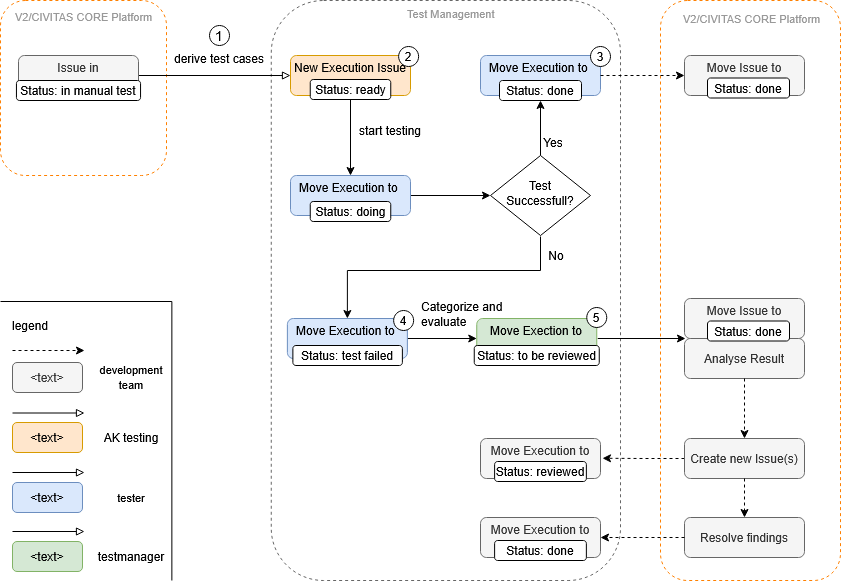
For all test cases identified by AK Testing, a issue is created and linked to the corresponding test case. When creating the description, the Test-case-execution template must be selected, as this issue is also used as the test log, as described under Test Execution Issue. The issues are then placed in the first column ready and assigned to the tester. When the tester begins the user acceptance test, they move the test case to the second column, doing. Depending on the outcome of the test, the test case is then moved to either the test failed or done column. The test manager then categorizes the failed tests and changes their status to to be reviewed in order to hand over the tasks to the development team.
1 - Derive
Issues to be Tested
To ensure that the defined test cases are executed at the right moments in the development process, the user acceptance test process must be integrated into the development process.
Development takes place in so-called sprints, i.e., iterations in which specific issues and thus features are implemented. Since not every completed issue requires a user acceptance test, a decision must first be made after each sprint as to which test case should be performed manually by a tester for which of the completed issues. This is done by the product owner. To do this, he sets the status of issues that require a user acceptance test to in manual test.
To view all issues with the status in manual test there is a separate board that displays them (see here)
Test Cases to be Executed
Once all issues to be tested manually have been defined, it is necessary to determine which test cases are affected and therefore need to be tested. This task is performed by AK Testing.
It determines the test cases to be tested by looking at which requirement and thus which user story was processed by the completed issue. Based on this, the test cases derived from these user stories can be determined and test execution issue can be created.
2 - Test Execution Issue
To perform a test, a issue is created and linked to the corresponding test case and assigned to a tester.
To record the test result, we used the created issue. The Test-case-execution template specifies the structure of the issue and the required report.
Test-case-execution template
Title
<!--
Use as Title: Execution: <test-case-short-title>
-->
The template begins with a comment specifying how the title of the issue should look. It begins with the prefix Execution. After a colon, the short title of the test case is added at the end.
Preconditions & Environment
After the title, the preconditions and environment are specified so that developers can better understand the problems.
- Screen Resolution: <width> x <height>
- Browser: <name>
- OS: <name>
- CIVITAS/CORE Version: dd.MM.YYYY
Screen Resolution: The screen resolution specifies the resolution of the rendered user interfaces of the application.
Browser: For browser information, the browser and its version must be specified.
OS: The operating system on which the client is running.
CIVITAS/CORE Version: The version of CIVITAS/CORE under which the test case is executed. Since the Civitas version is not displayed, the current date should be entered here instead.
Generation
Use the following button to generate the preconditions and environment for your current browser.
Report
## Feature <feature-title>
The report starts with the feature title specified in the test case. For each scenario specified in the test case and under the feature, the following block is specified, which is provided once as a template.
### Scenario <description of a scenario>

- [ ] Result as expected
- [ ] Result as expected but...
- [ ] Result not as expected

#### Description of the problem

_Provide a concise description of the problem_

#### Steps to reproduce it

_List the steps to reproduce the problem:_

1. ...

#### Screenshots/Recordings

_If relevant, copy and paste screenshots, photos or recordings of the problem here._
First, the result of the test case is specified for the scenario.
Result as expected: The scenario works as expected.Result as expected but...: The scenario works as expected, but has flaws from a user acceptance perspective.Result not as expected: The scenario does not work as expected.
If the result is not as expected, the problem is explained in more detail under the next point Description of the problem. This is followed by a list of steps on how to reproduce this result. Finally, screenshots or recordings can be provided to make it easier to understand.
Recording
To better record the errors of a test, there is a Recording section in the report. Screenshots or GIFs can be stored here for better presentation. The Recording function in Google Chrome can also be used to make the click path of the test easier for the developer to follow.
Google Chrome Recorder
To use Google Chrome Recorder, you must first open the developer tools (F12). Then you can open the Recorder tab. Click on the plus icon (+) to create and start a new recording. After starting, all you have to do is run the test and then stop the recording.
To share the recording, click on the Code button after the recording is complete and copy the JSON into the report. The developer can then paste the JSON into their browser and run the test on their own computer.
3 - Test Successful
If the user acceptance test is performed successfully, the corresponding issue is placed in the done column. This column thus shows which user acceptance tests have currently been performed successfully.
4 - Test Failed
If a test fails, the corresponding issue is moved to the test failed column.
At this point, the tester has finished their work and the test manager takes over, categorising and evaluating the result.
5 - Categorize and evaluate
The test manager categorizes the failed tests and changes their status to to be reviewed in order to hand over the tasks to the development team.
To categorise, the test manager adds labels for the team to which the issue is probably related, and adds a feature or bug label to indicate whether it is a feature request, a bug or an usability issue. They then use the weights to give a rough estimation of the complexity.