Data pools
Role: Data Architect, Data Owner, Data Steward
Goal: Organize Datasets into Data pools, control access on a higher level, and manage shared ownership and governance.
Required Permissions: read Data pool, create Data pool, update Data pool, delete Data pool; read Dataset, create Dataset, update Dataset
What is a Data pool?
Data pools help organize related Datasets within the Platform. They provide a shared context for ownership, access management, and Data source availability across multiple Datasets.
Assigning a Dataset to a Data pool is optional, but recommended.
What you will achieve
After completing this guide, you will have:
- Create and manage Data pools
- Assign Datasets to Data pools
- Configure access on Data pool level
- Restrict Data source availability for Data pools
- Organize Datasets within a shared governance context
Common use cases for Data pools
Use Data pools when:
- multiple Datasets belong together
- ownership is shared
- permissions should be managed consistently
- Datasets represent one organisational unit
Avoid creating Data pools for individual Datasets only.
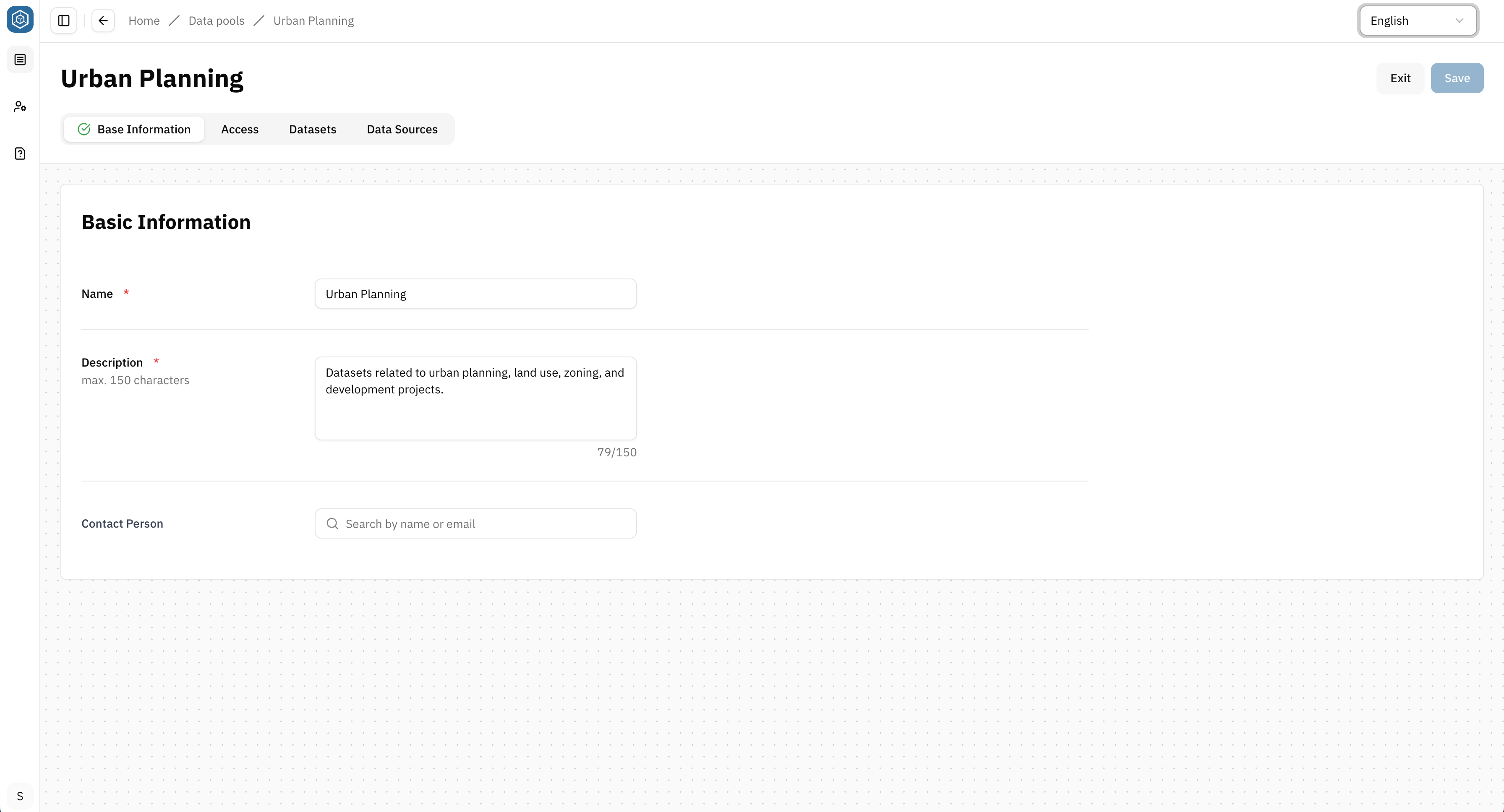
Create and edit a Data pool
- Go to Data pools
- Click Create Data pool
- Define Name, Description and Owner in the 1st tab Base information
- Hit Save
The Data pool exists now but contains no Datasets.
Add Datasets to a Data pool
Assign an existing Dataset
- Go to Datasets
- Open a specific Dataset
- Select a Data pool in the 1st section Base information
- Hit Save
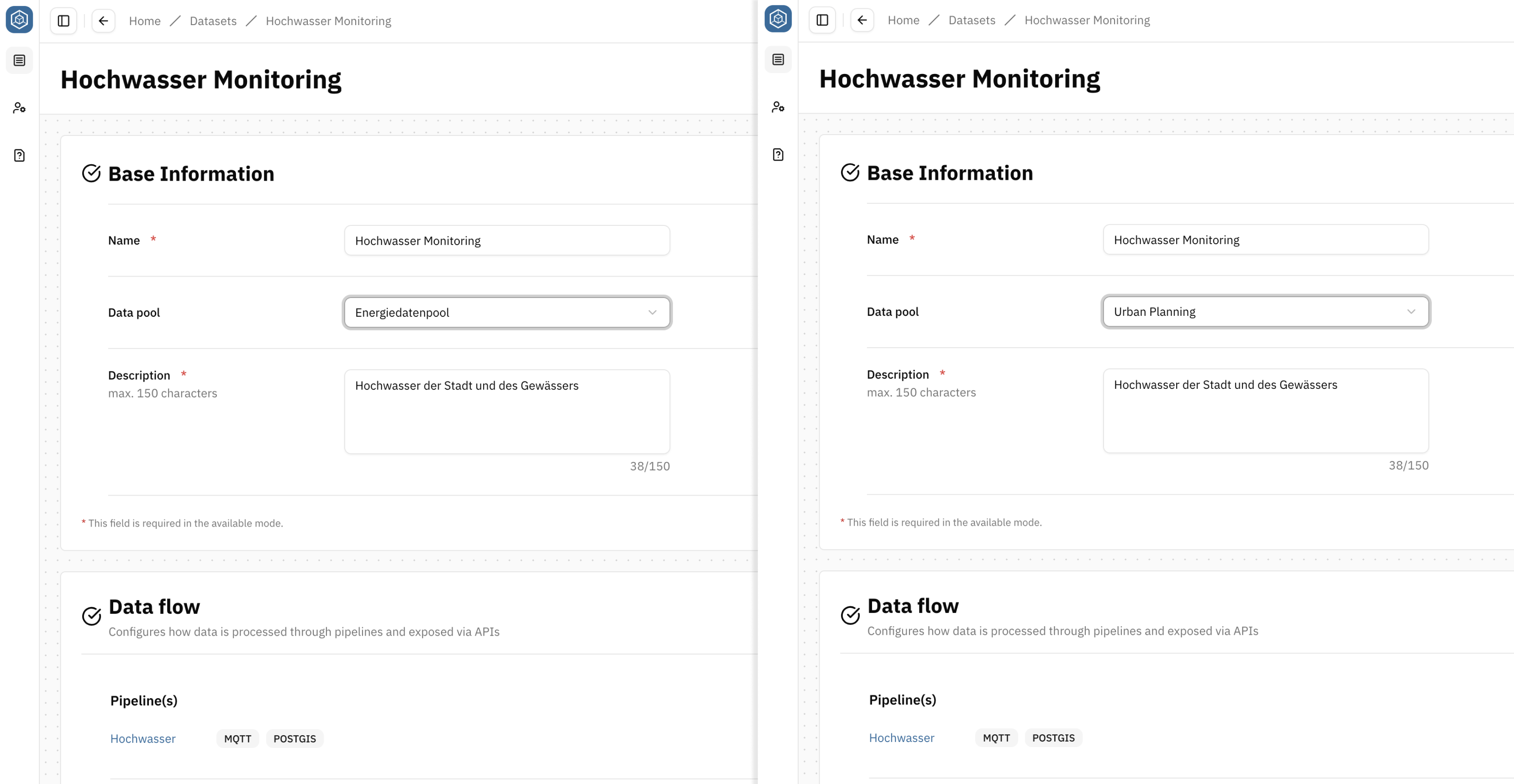
Moving a Dataset to another Data pool may affect access permissions. Review the permissions of the target Data pool before making changes.
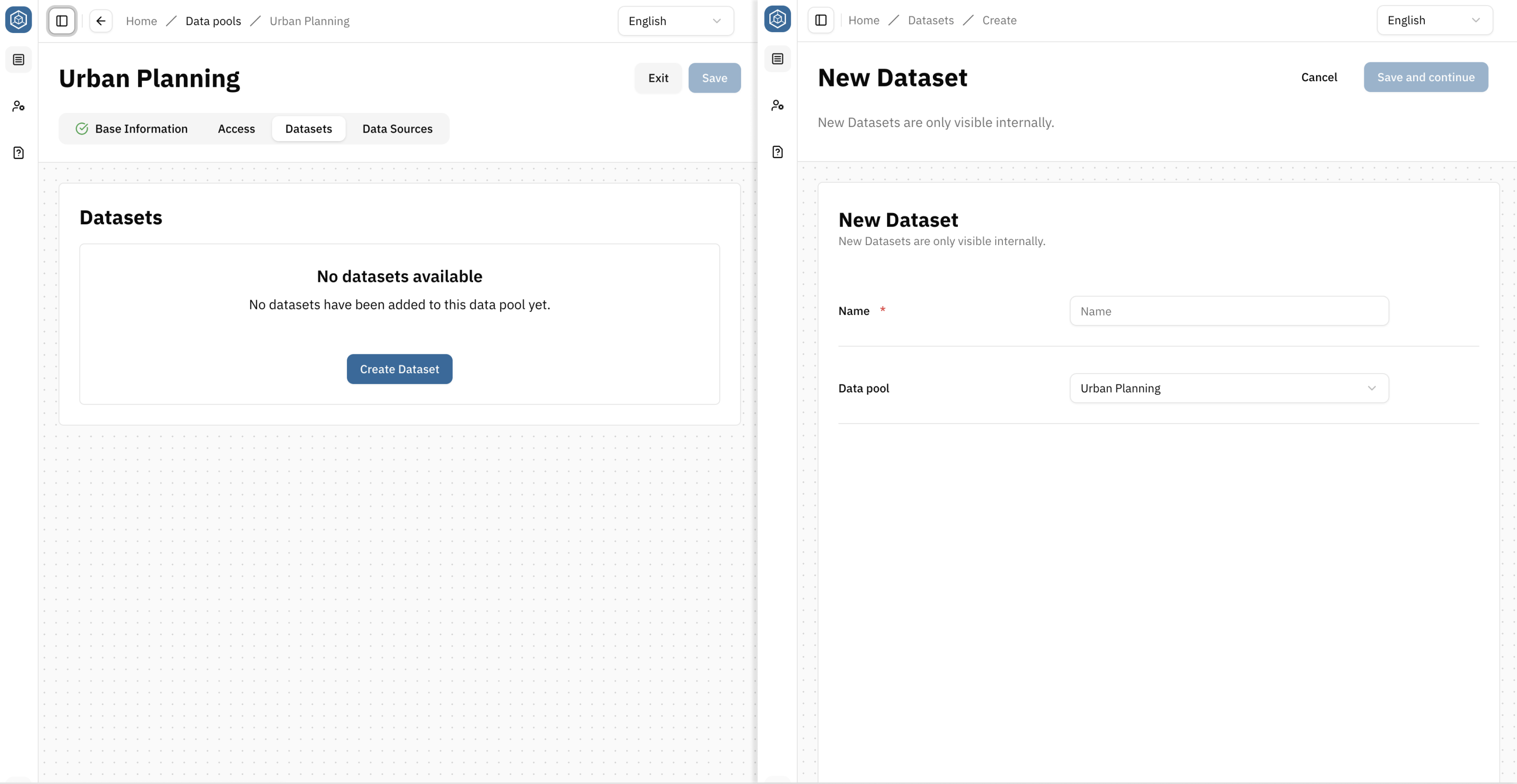
Create a new Dataset within a Data pool
- Open the Data pool
- Navigate to the Datasets tab
- Select Create Dataset
- Complete the Dataset creation process
The selected Data pool is automatically assigned to the new Dataset.
Configure access on Data pool level
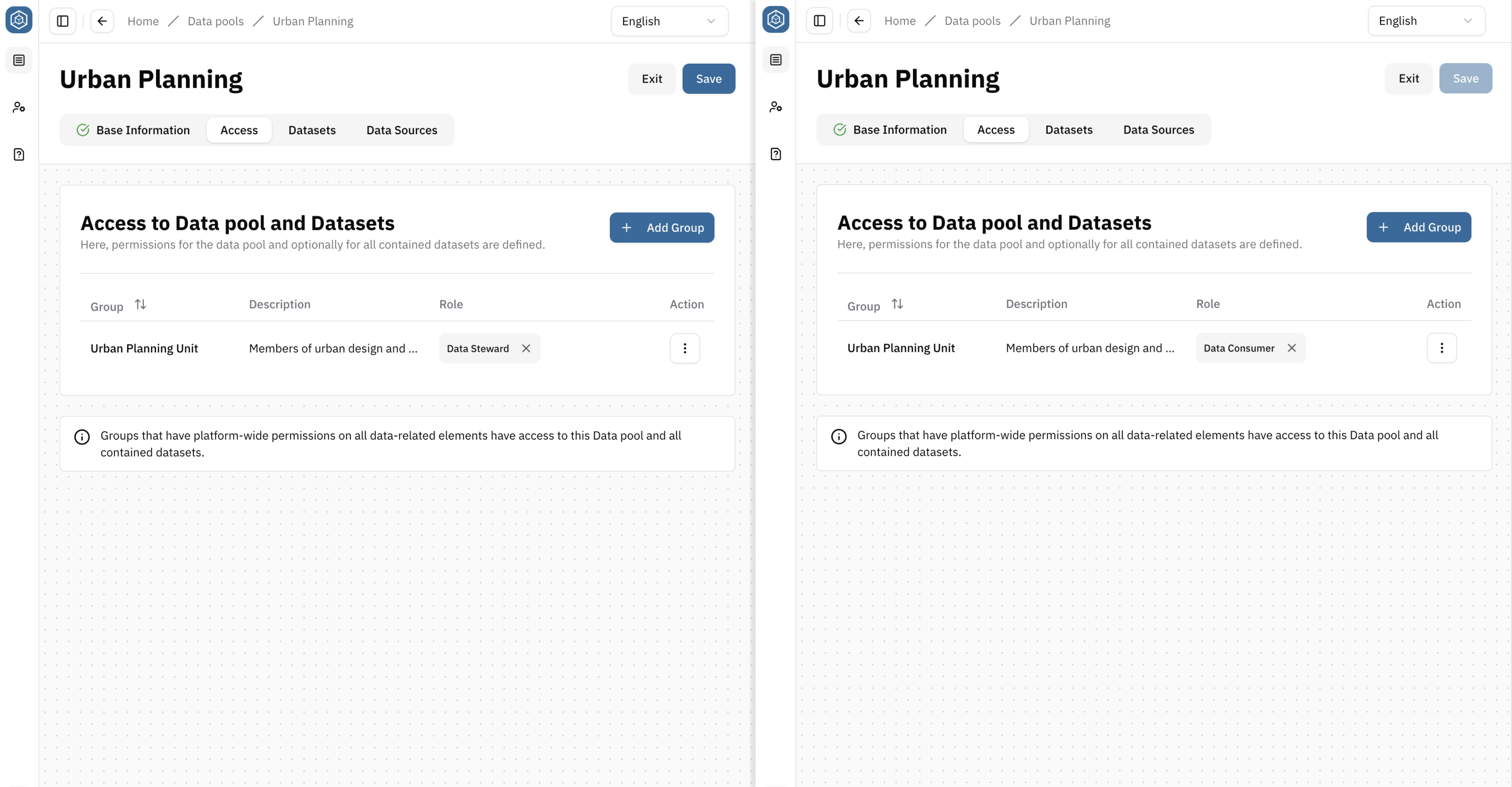
In the Access tab, you define which Groups can access and manage the Data pool itself.
→ Depending on the assigned Role, the same assignment can also grant access to all contained Datasets. This allows access to multiple Datasets to be managed through a single Group and Role assignment.
Choose an access strategy
| Strategy | Example | Result | Recommended |
|---|---|---|---|
| Centralized access management | Assign a Group to the Data Steward Role on Data pool level | Group members can manage the Data pool and all contained Datasets through a single assignment | ✅ yes |
| Combined access management | Assign a large Group to the Data Consumer Role on Data pool level and manage additional Roles on individual Datasets | All users can discover and read Datasets, while editing permissions remain controlled on individual Datasets | ✅ yes |
| Organizational grouping only | Assign a custom Data pool-specific Role without Dataset permissions on Data pool level | The Data pool is used for organization only. Dataset permissions are managed independently | ⚠️ Advanced use case |
Assign Groups and Roles on Data pool level
- Open the Access tab
- Add a Group
- Assign a Role to the Group
- Repeat these steps to add more Groups and Roles
- Hit Save
For a detailed explanation of permission inheritance and authorization concepts, see → Authorisation.
Review Datasets and Data sources
The Data pool detail view provides an overview of the Datasets and Data sources associated with the Data pool.
Tab Datasets: View all Datasets assigned to the Data pool.
Tab Data sources: View all Data sources that have been released for the Data pool and are available for use by its Datasets.
Restrict Data sources for Data pools
Data source availability for Data pools is configured in the Data source detail view.
→ By releasing a Data source for one or more Data pools, you control in which Datasets the Data source can be selected during pipeline configuration. A Data source is only available in Datasets that belong to a Data pool for which the Data source has been released.
For example, a Data source containing information about critical infrastructure may only be intended for specific organisational units and therefore be released only for selected Data pools.
Data sources can be made available to:
- all Data pools
- selected Data pools
- no Data pools
Datasets without a Data pool assignment can only be targeted indirectly through the All Data pools option. Assigning Datasets to a Data pool is therefore recommended.
Restricting Data source availability allows you to:
- control which Data sources can be used within specific organisational areas
- reduce complexity for Dataset creators by showing only relevant Data sources
- support governance and compliance requirements
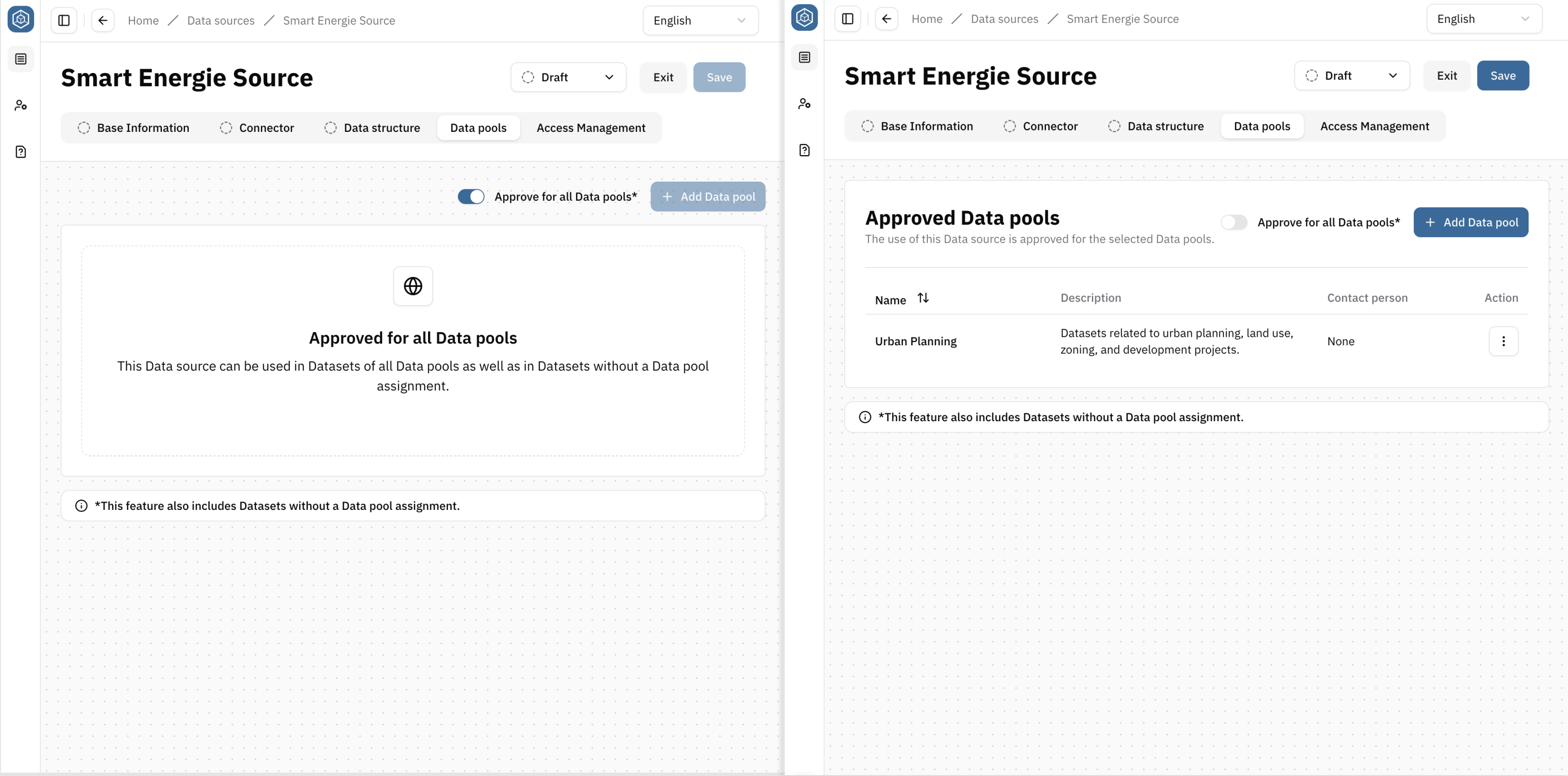
Configure Data source availability
- Open the Data source detail view
- Navigate to the Data pools tab
Either: You keep the default setting "Approve for all Data pools" (DE: Für alle Datenpools freigegeben) enabled. This makes the data source available to Datasets in all Data pools, as well as to Datasets without a Data pool assignment.
Or: You disable the setting "Approve for all Data pools" (DE: Für alle Datenpools freigegeben). In this case, you can specify the individual Data pools for which this Data source should be released. If you disable the default setting without adding any specific Data pools, the data source cannot be used in any Dataset.
- Hit Save
Delete a Data pool
→ A Data pool can only be deleted when no Datasets are assigned to it. Before deleting a Data pool, open each contained Dataset and decide:
- assign it to another Data pool (recommended)
- remove its Data pool assignment
To delete a Data pool
- Open Data pools
- Locate the Data pool in the table
- Select Delete from the Actions column
- Confirm the deletion
The Data pool is removed from the Platform.
Best Practices
Recommended
- ✅ Organize Data pools according to organisational responsibilities
- ✅ Use Data pools to simplify permission management
- ✅ Reuse Data pools for related Datasets
Avoid
- ❌ Creating a Data pool for every Dataset
- ❌ Duplicating permission assignments unnecessarily
Related Articles
→ Core Concepts → Authorisation → Connect external data → Release Data