Release data
Role: Data Owner, Data Gatekeeper
Goal: You want to review a DatasetDatasetA data-related element that contains processed data and makes it available for consumption. A Dataset is populated via Pipelines and carries Metadata and access permissions., make it available, and define who can access its data.
Required Permissions: create DatasetDatasetA data-related element that contains processed data and makes it available for consumption. A Dataset is populated via Pipelines and carries Metadata and access permissions., release DatasetDatasetA data-related element that contains processed data and makes it available for consumption. A Dataset is populated via Pipelines and carries Metadata and access permissions.
What you will achieve
After completing this guide, you will have:
- Reviewed a DatasetDatasetA data-related element that contains processed data and makes it available for consumption. A Dataset is populated via Pipelines and carries Metadata and access permissions.
- Managed access permissions
- Optionally enabled Open Data access
- Made the DatasetDatasetA data-related element that contains processed data and makes it available for consumption. A Dataset is populated via Pipelines and carries Metadata and access permissions. and its APIs available
Before you start
- the DatasetDatasetA data-related element that contains processed data and makes it available for consumption. A Dataset is populated via Pipelines and carries Metadata and access permissions. is in status Ready
- the data flow and configuration have already been completed
- you have permission to release DatasetsDatasetA data-related element that contains processed data and makes it available for consumption. A Dataset is populated via Pipelines and carries Metadata and access permissions.
Understand Dataset availability
Before making a DatasetDatasetA data-related element that contains processed data and makes it available for consumption. A Dataset is populated via Pipelines and carries Metadata and access permissions. available, make sure it is ready for use. In CIVITAS/CORE, a DatasetDatasetA data-related element that contains processed data and makes it available for consumption. A Dataset is populated via Pipelines and carries Metadata and access permissions. becomes accessible when its status is set to Available.
This means:
- the configured APIs of the DatasetDatasetA data-related element that contains processed data and makes it available for consumption. A Dataset is populated via Pipelines and carries Metadata and access permissions. become available
- the payload data can be accessed through these APIs
- access is controlled through Access Management
- optional Open Data access allows use without authentication
In this guide, you review and release the smart meter DatasetDatasetA data-related element that contains processed data and makes it available for consumption. A Dataset is populated via Pipelines and carries Metadata and access permissions. created in the previous steps. Once the DatasetDatasetA data-related element that contains processed data and makes it available for consumption. A Dataset is populated via Pipelines and carries Metadata and access permissions. is available, its data can be accessed through the API. You can control access through groups and roles or make the data publicly accessible by enabling Open Data.
Step-by-step guide
Step 1: Review the Dataset
The review step ensures that the DatasetDatasetA data-related element that contains processed data and makes it available for consumption. A Dataset is populated via Pipelines and carries Metadata and access permissions. is complete and ready to be shared.
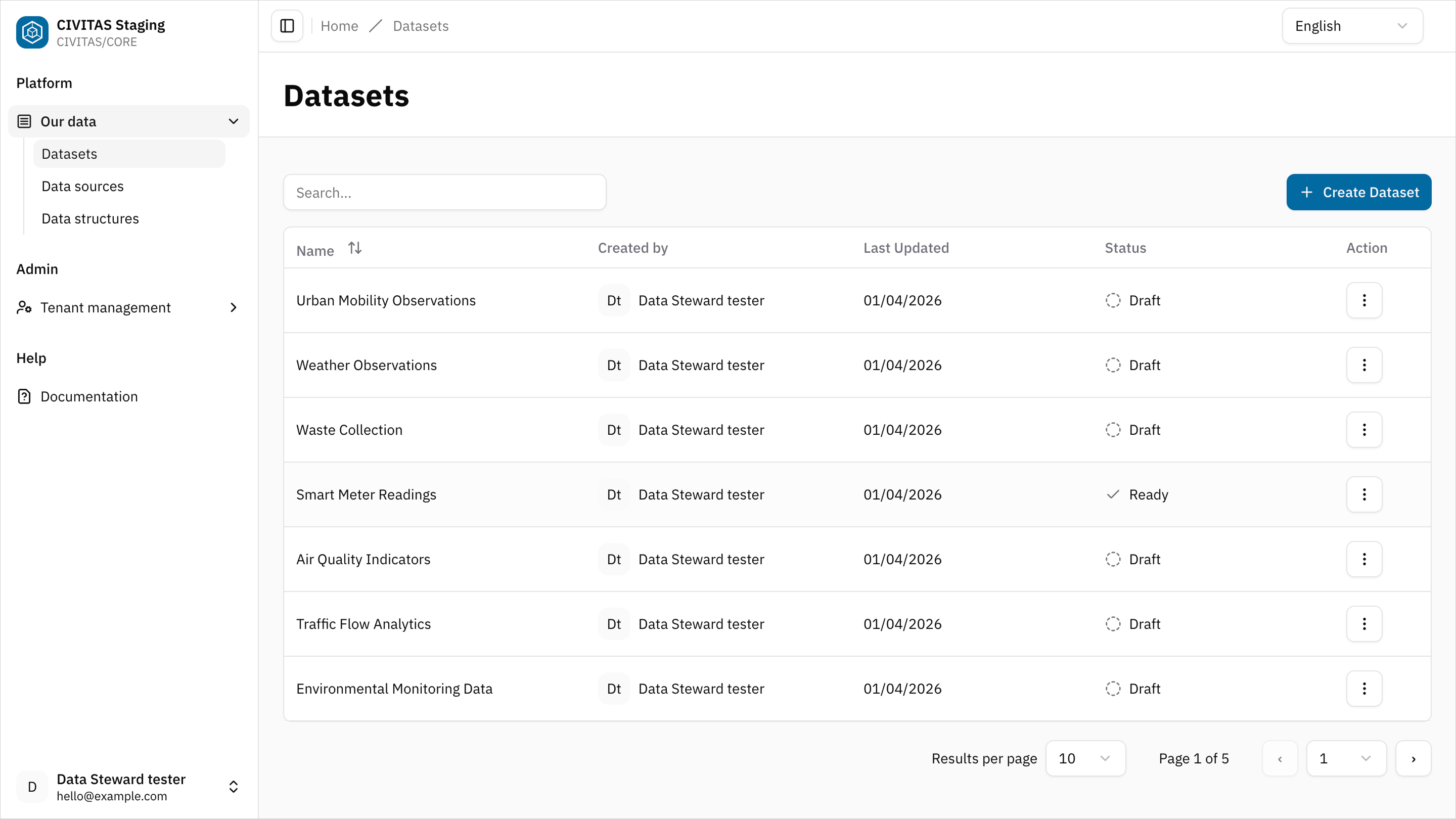
- Go to DatasetsDatasetA data-related element that contains processed data and makes it available for consumption. A Dataset is populated via Pipelines and carries Metadata and access permissions.
- Open the DatasetDatasetA data-related element that contains processed data and makes it available for consumption. A Dataset is populated via Pipelines and carries Metadata and access permissions. from List
- Review
- Base information
- Pipelines
- APIs
- Access Management
Optional: Manage Access permissions
Permissions can be granted at different levels:
- Platform-wide
- Through permission inheritance from the assigned Datapool
- Directly on the DatasetDatasetA data-related element that contains processed data and makes it available for consumption. A Dataset is populated via Pipelines and carries Metadata and access permissions.
Configure DatasetDatasetA data-related element that contains processed data and makes it available for consumption. A Dataset is populated via Pipelines and carries Metadata and access permissions.-specific permissions only when they differ from inherited or platform-wide access.
Access defines who can view and use the DatasetDatasetA data-related element that contains processed data and makes it available for consumption. A Dataset is populated via Pipelines and carries Metadata and access permissions..
- Click Edit Groups and Roles in the section Access Management
Add access
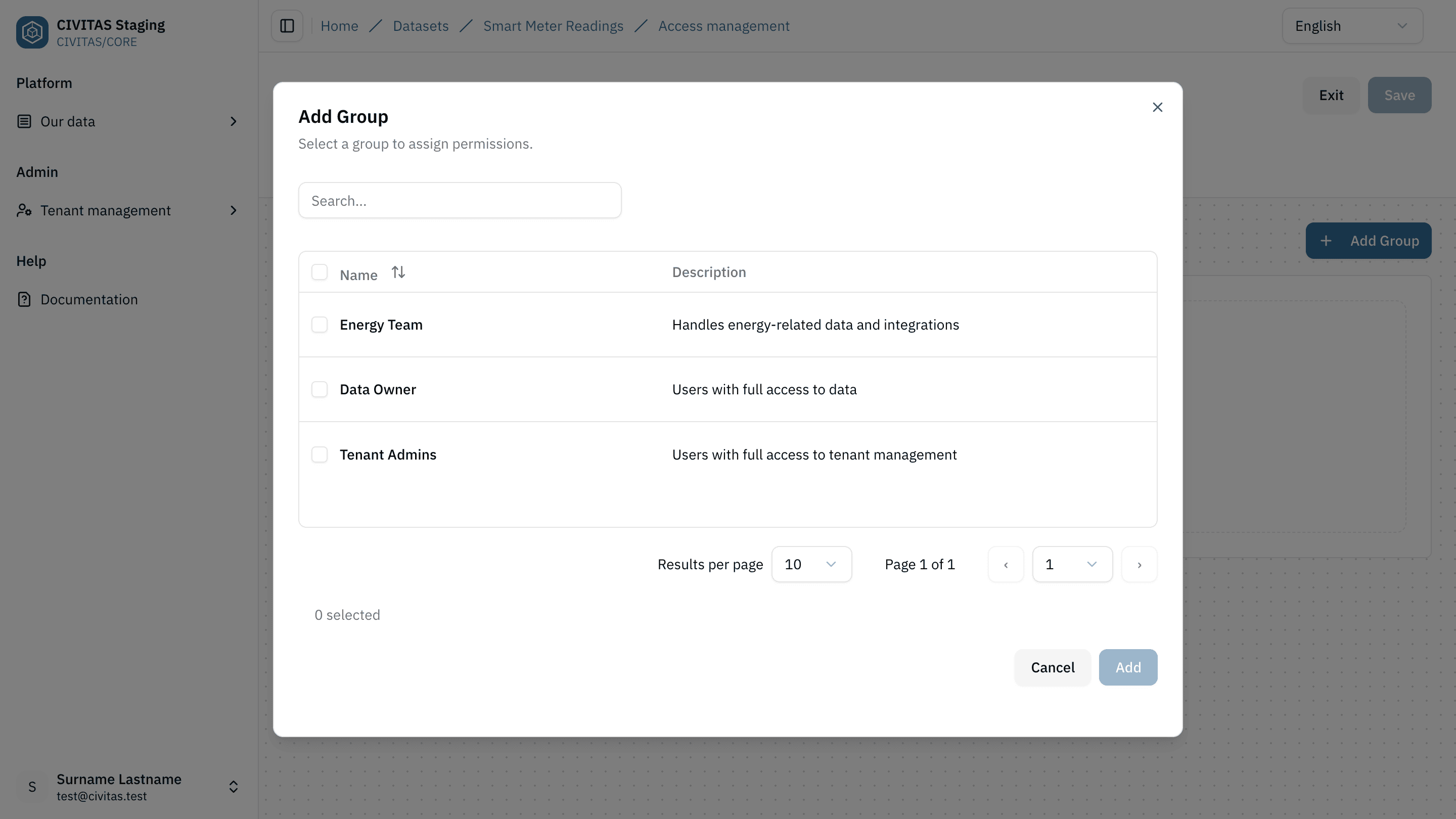
- Add a Group
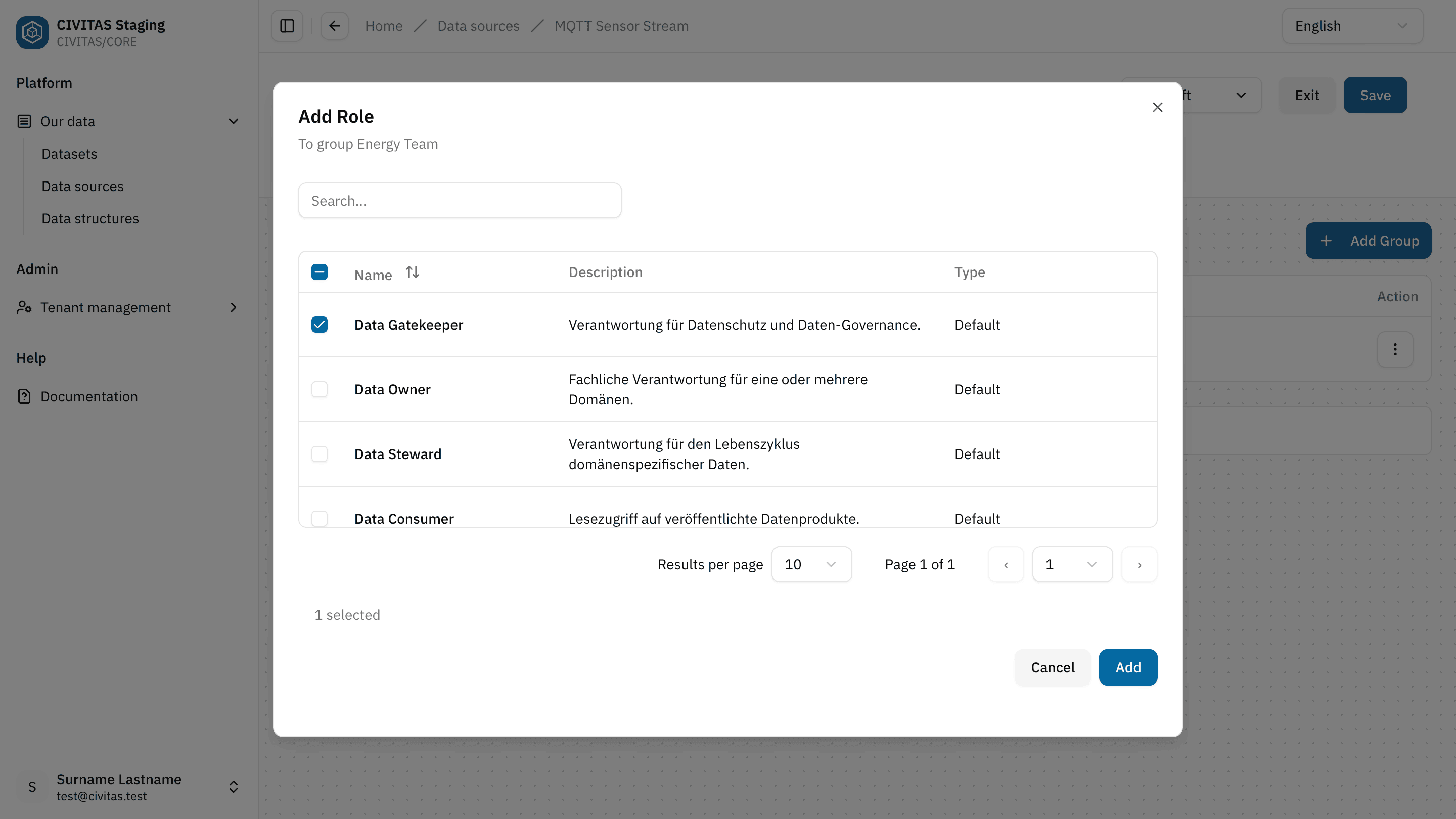
- Assign a Role to the Group
- Repeat these steps to add more Groups and Roles
Remove access
- In the table, locate the Group-Role assignment you want to remove
- Click the three dots in the Actions column
- Select Remove Group
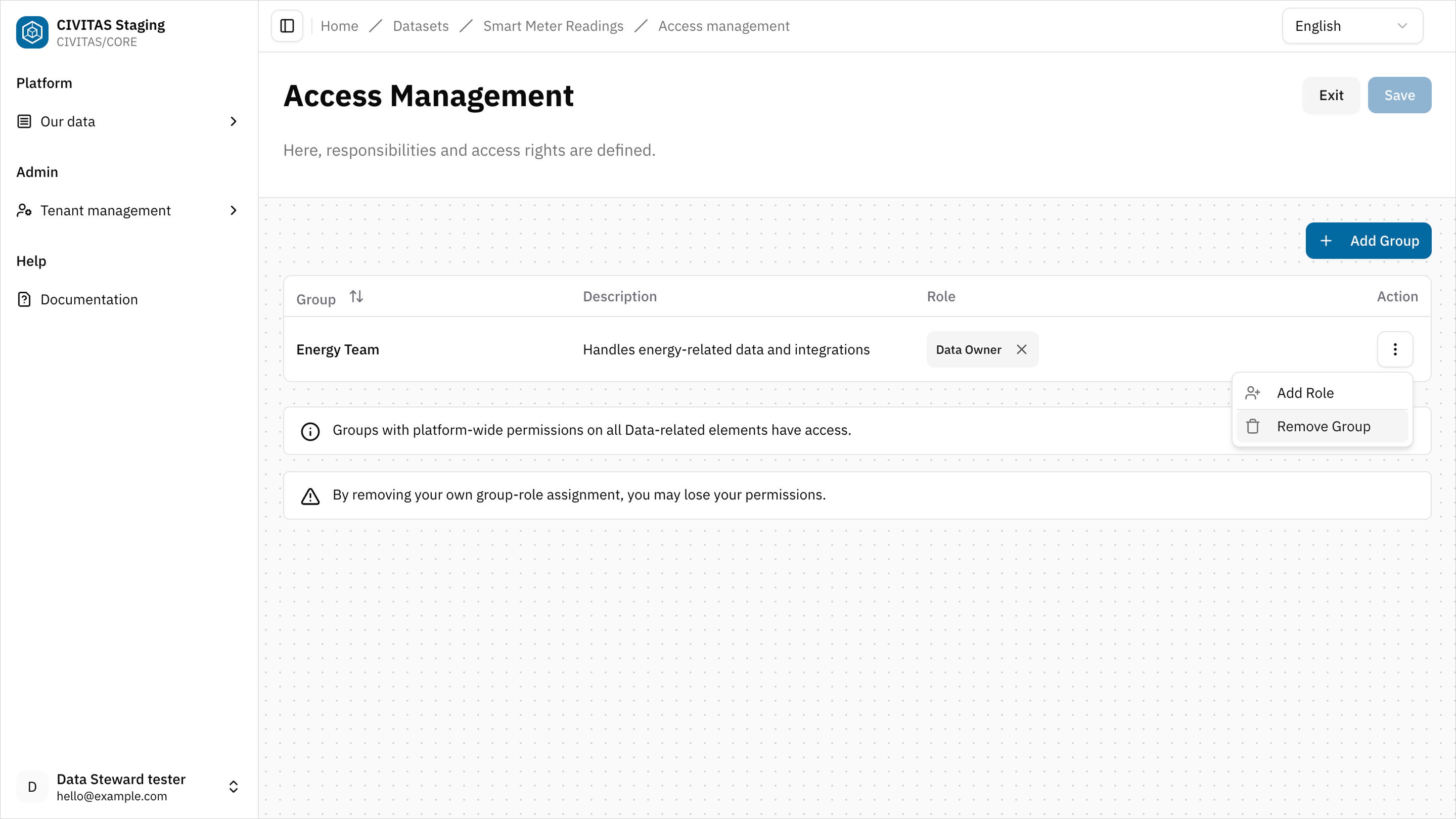
→ Removing a Group also removes all associated Role assignments for this DatasetDatasetA data-related element that contains processed data and makes it available for consumption. A Dataset is populated via Pipelines and carries Metadata and access permissions..
- Hit Save and Turn back to the detail view of the DatasetDatasetA data-related element that contains processed data and makes it available for consumption. A Dataset is populated via Pipelines and carries Metadata and access permissions.
- Access is defined by assigning a Role to a Group within the DatasetDatasetA data-related element that contains processed data and makes it available for consumption. A Dataset is populated via Pipelines and carries Metadata and access permissions.
- Adding or removing assignments directly changes who can access the data
- Access can be granted platform-wide, through the assigned Datapool, or directly on the DatasetDatasetA data-related element that contains processed data and makes it available for consumption. A Dataset is populated via Pipelines and carries Metadata and access permissions.
- DatasetDatasetA data-related element that contains processed data and makes it available for consumption. A Dataset is populated via Pipelines and carries Metadata and access permissions.-specific assignments override neither inherited nor platform-wide permissions
- Make sure the correct Groups and Roles are assigned before releasing the DatasetDatasetA data-related element that contains processed data and makes it available for consumption. A Dataset is populated via Pipelines and carries Metadata and access permissions.
Optional: Enable Open Data access
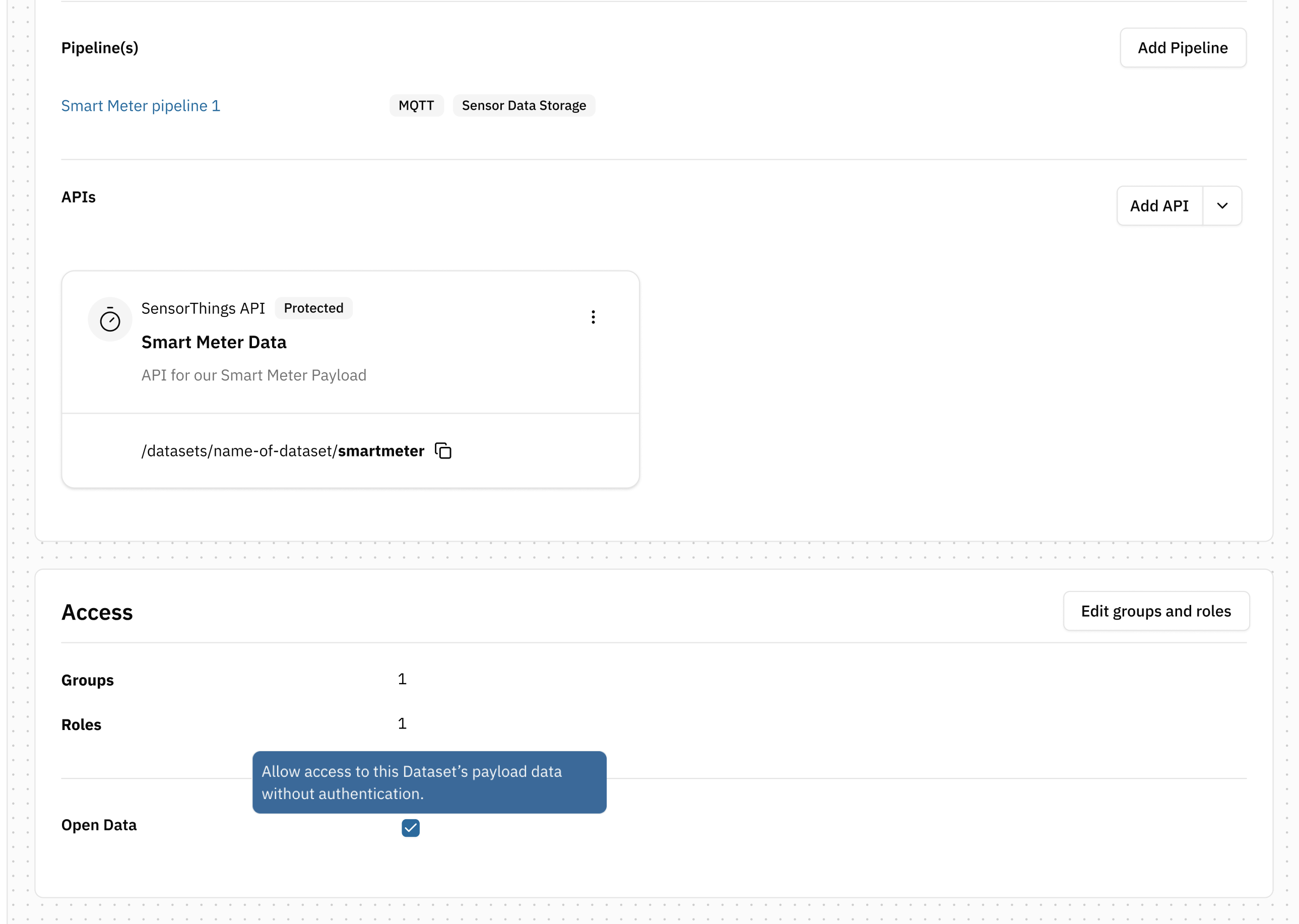
Open Data allows access to the payload of the DatasetDatasetA data-related element that contains processed data and makes it available for consumption. A Dataset is populated via Pipelines and carries Metadata and access permissions. without authentication.
- Activate Open Data in the section Access Management
- Hit Save
Step 2: Mark the Dataset as available
The Available status activates the DatasetDatasetA data-related element that contains processed data and makes it available for consumption. A Dataset is populated via Pipelines and carries Metadata and access permissions.. Its configured APIs can now provide access to the DatasetDatasetA data-related element that contains processed data and makes it available for consumption. A Dataset is populated via Pipelines and carries Metadata and access permissions. Payload.
- Change the status to Available
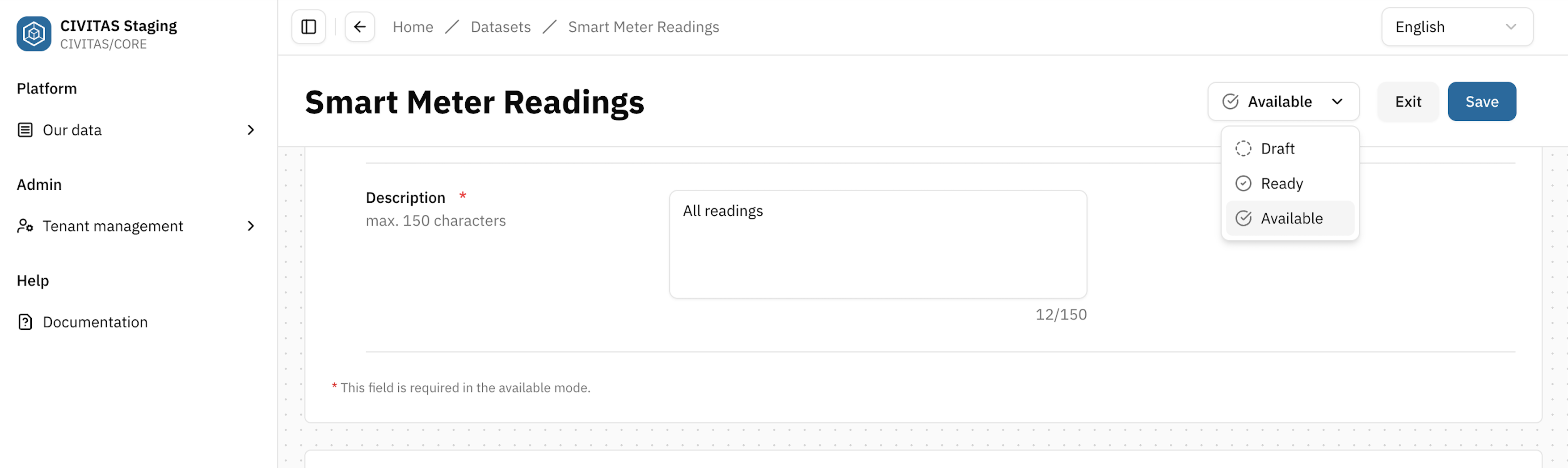
- Hit Save and Exit
Step 3: Locate and share the API URL
- Open the APIs subsection in the Dataflow section
- Locate the API
- Copy the API URL
- Share the URL with Users who require access
Outcome
The DatasetDatasetA data-related element that contains processed data and makes it available for consumption. A Dataset is populated via Pipelines and carries Metadata and access permissions. is Available.
- its configured APIs are available
- the DatasetDatasetA data-related element that contains processed data and makes it available for consumption. A Dataset is populated via Pipelines and carries Metadata and access permissions. Payload can be accessed through these APIs
- access is controlled by assigned Groups and Roles
- or publicly available if Open Data is enabled
Next
Your data is now available for use. In the next guide, you will:
- access a DatasetDatasetA data-related element that contains processed data and makes it available for consumption. A Dataset is populated via Pipelines and carries Metadata and access permissions.
- Access the DatasetDatasetA data-related element that contains processed data and makes it available for consumption. A Dataset is populated via Pipelines and carries Metadata and access permissions. Payload through one of its APIs
→ Continue with Consume Data