Release data
Role: Data Owner, Data Gatekeeper
Goal: You want to review a Dataset, make it available, and define who can access its data.
Required Permissions: create Dataset, release Dataset
What you will achieve
After completing this guide, you will have:
- Reviewed a Dataset
- Managed access permissions
- Optionally enabled Open Data access
- Made the Dataset and its APIs available
Before you start
- the Dataset is in status Ready
- the data flow and configuration have already been completed
- you have permission to release Datasets
Understand Dataset availability
Before making a Dataset available, make sure it is ready for use. In CIVITAS/CORE, a Dataset becomes accessible when its status is set to Available.
This means:
- the configured APIs of the Dataset become available
- the payload data can be accessed through these APIs
- access is controlled through Access Management
- optional Open Data access allows use without authentication
In this guide, you review and release the smart meter Dataset created in the previous steps. Once the Dataset is available, its data can be accessed through the API. You can control access through groups and roles or make the data publicly accessible by enabling Open Data.
Step-by-step guide
Step 1: Review the Dataset
The review step ensures that the Dataset is complete and ready to be shared.
- Go to Datasets
- Open the Dataset from List
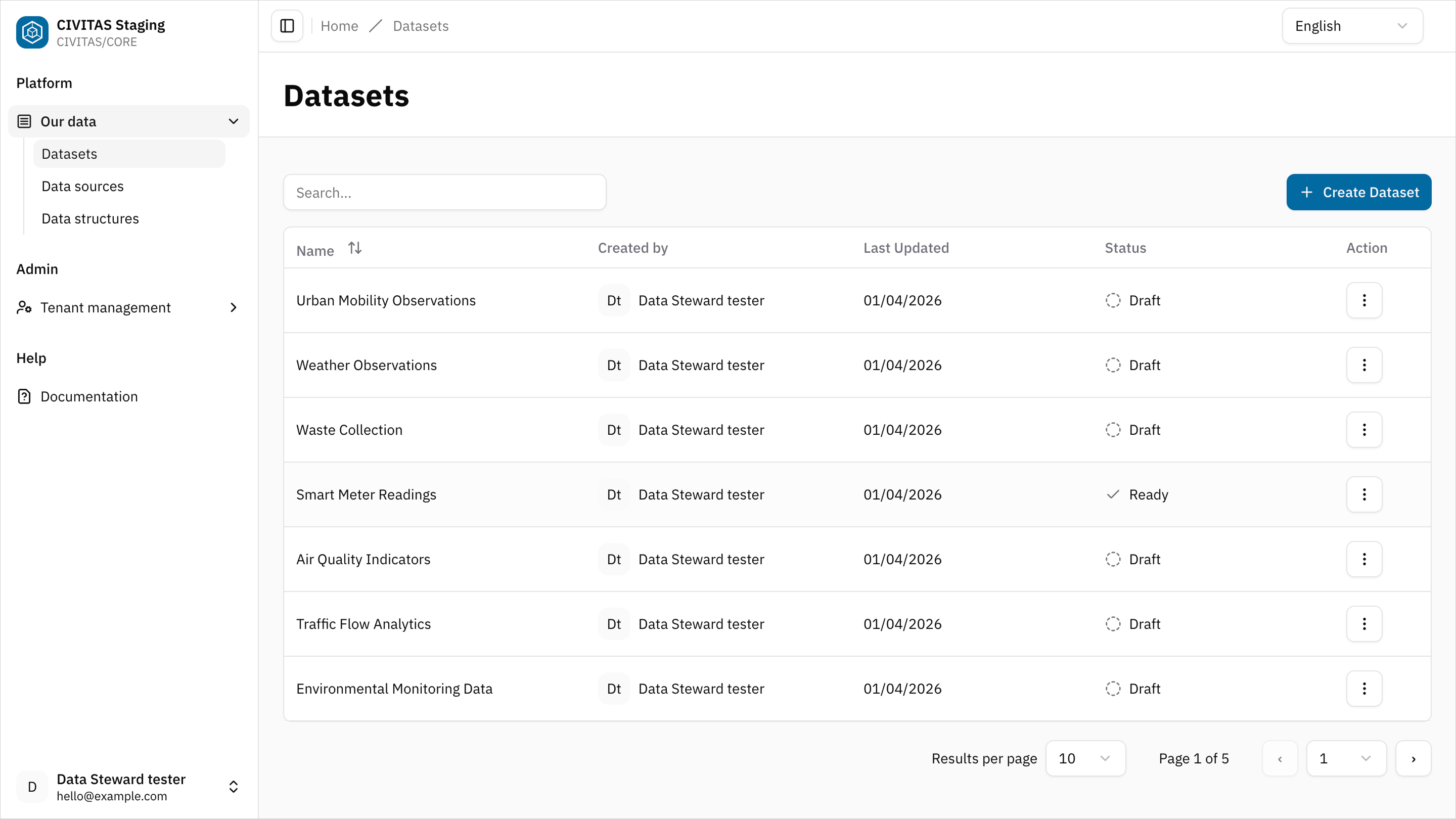
- Review
- Base information
- Pipelines
- APIs
- Access Management
Optional: Manage Access permissions
Permissions can be granted at different levels:
- Platform-wide
- Through permission inheritance from the assigned Data pool
- Directly on the Dataset
Configure Dataset-specific permissions only when they differ from inherited or platform-wide access.
Access defines who can view and use the Dataset.
- Click Edit Groups and Roles in the section Access Management
Add access
- Add a Group
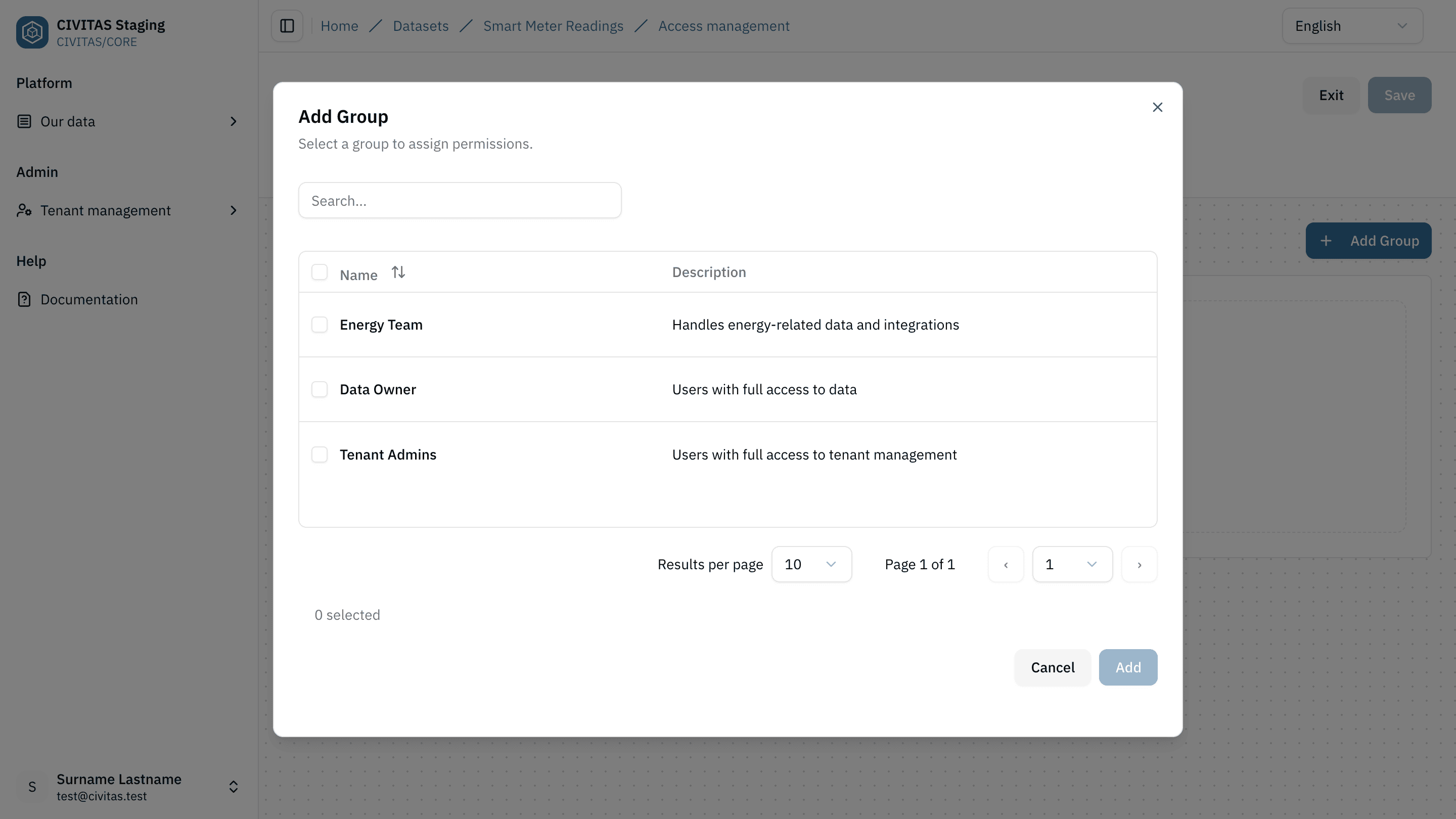
- Assign a Role to the Group
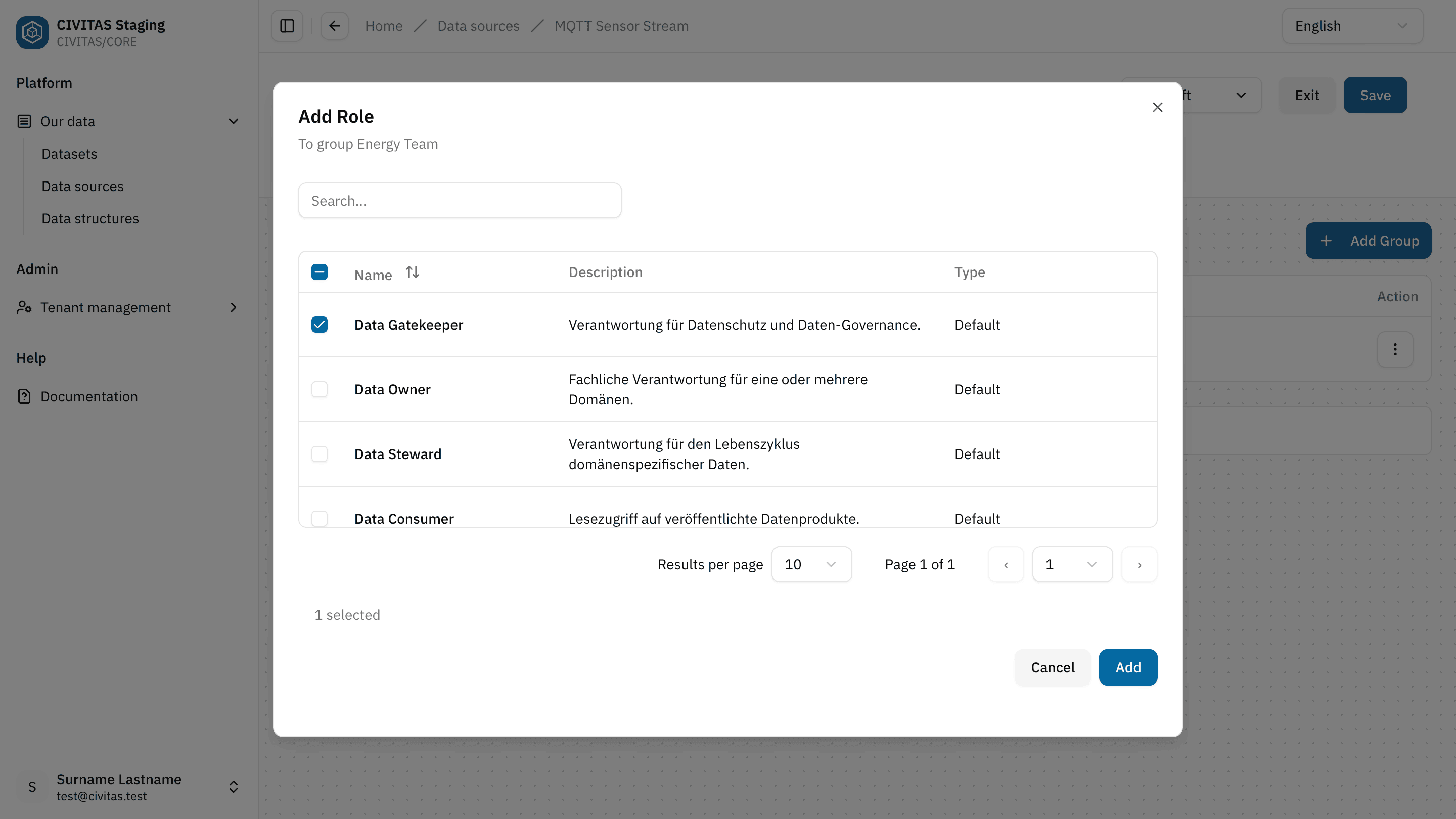
- Repeat these steps to add more Groups and Roles
Remove access
- In the table, locate the Group-Role assignment you want to remove
- Click the three dots in the Actions column
- Select Remove Group
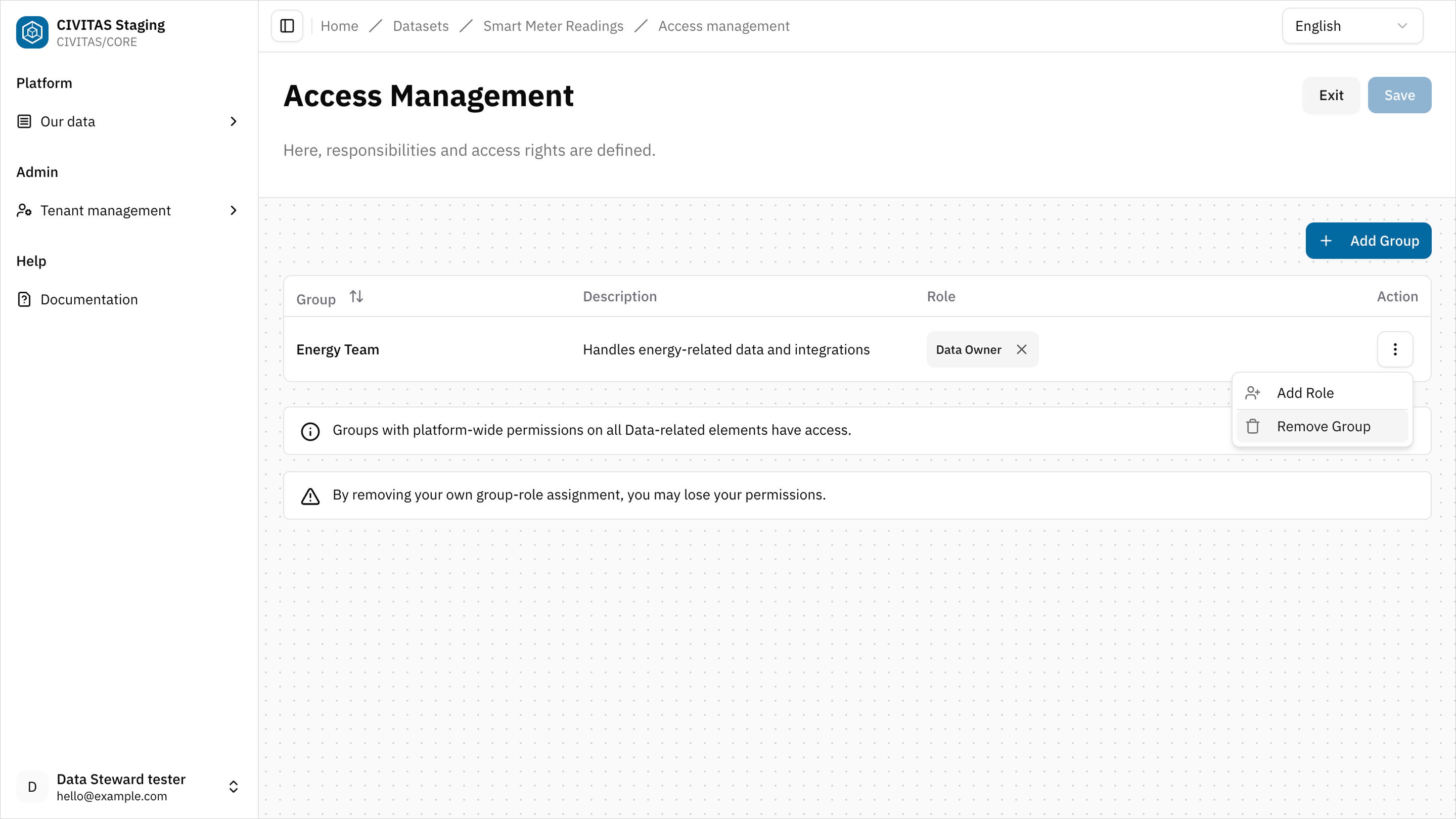
→ Removing a Group also removes all associated Role assignments for this Dataset.
- Hit Save and Turn back to the detail view of the Dataset
- Access is defined by assigning a Role to a Group within the Dataset
- Adding or removing assignments directly changes who can access the data
- Access can be granted platform-wide, through the assigned Data pool, or directly on the Dataset
- Dataset-specific assignments override neither inherited nor platform-wide permissions
- Make sure the correct Groups and Roles are assigned before releasing the Dataset
Optional: Enable Open Data access
Open Data allows access to the payload of the Dataset without authentication.
- Activate Open Data in the section Access Management
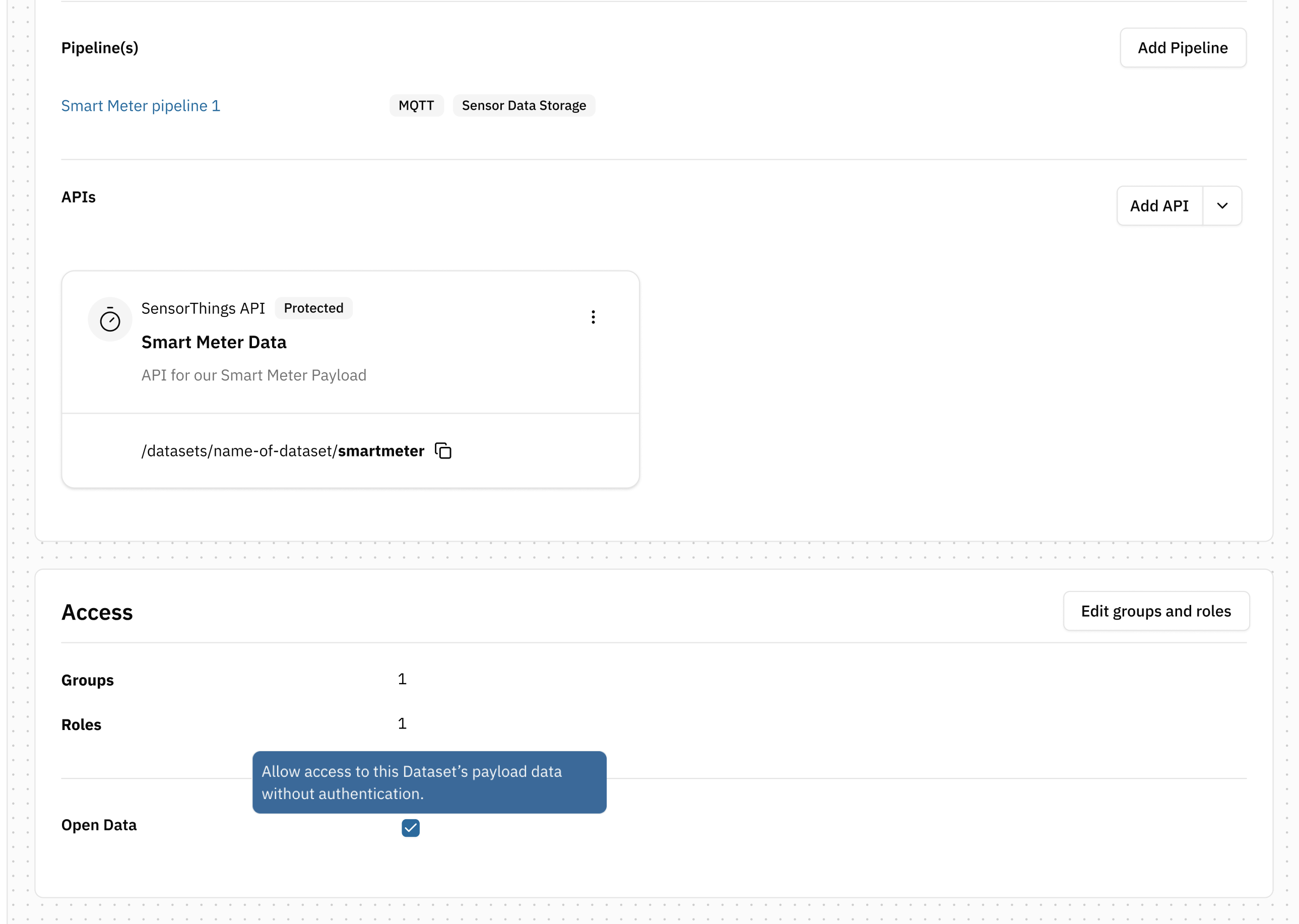
- Hit Save
Step 2: Mark the Dataset as available
The Available status activates the Dataset. Its configured APIs can now provide access to the Dataset Payload.
- Change the status to Available
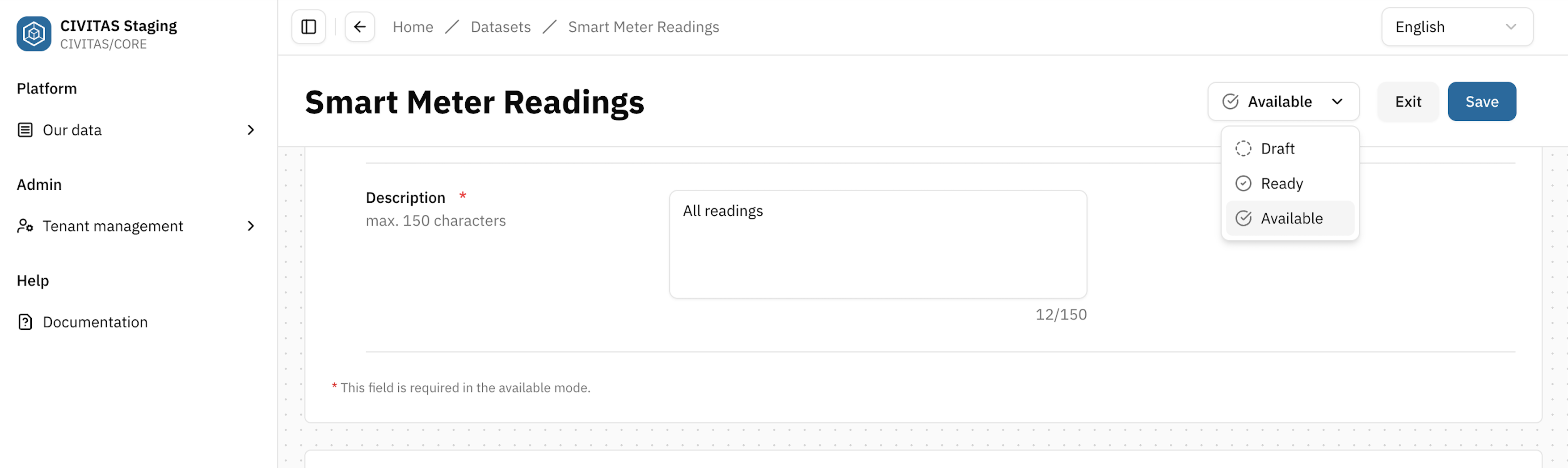
- Hit Save and Exit
Step 3: Locate and share the API URL
- Open the APIs subsection in the Dataflow section
- Locate the API
- Copy the API URL
- Share the URL with Users who require access
Outcome
The Dataset is Available.
- its configured APIs are available
- the Dataset Payload can be accessed through these APIs
- access is controlled by assigned Groups and Roles
- or publicly available if Open Data is enabled
Next
Your data is now available for use. In the next guide, you will:
- access a Dataset
- Access the Dataset Payload through one of its APIs
→ Continue with Consume Data