Design Data structures
Role: Data Architect, Data Steward
Goal: You want to define reusable Data structures that can be used for Data sources, Mappings, and Pipelines.
Required Permissions: update Data structure
What you will learn
After completing this guide, you will understand how to:
- use the Data structure canvas
- create and organize Classes
- use Enums for predefined values
- add and describe Attributes
- connect Classes using Relationships
- define Cardinalities
Before you start
A Data structure describes the shape of your data independently of its source or storage. It defines how information is organized and serves as the foundation for Data sources, Mappings, and Pipelines.
The Data structure canvas
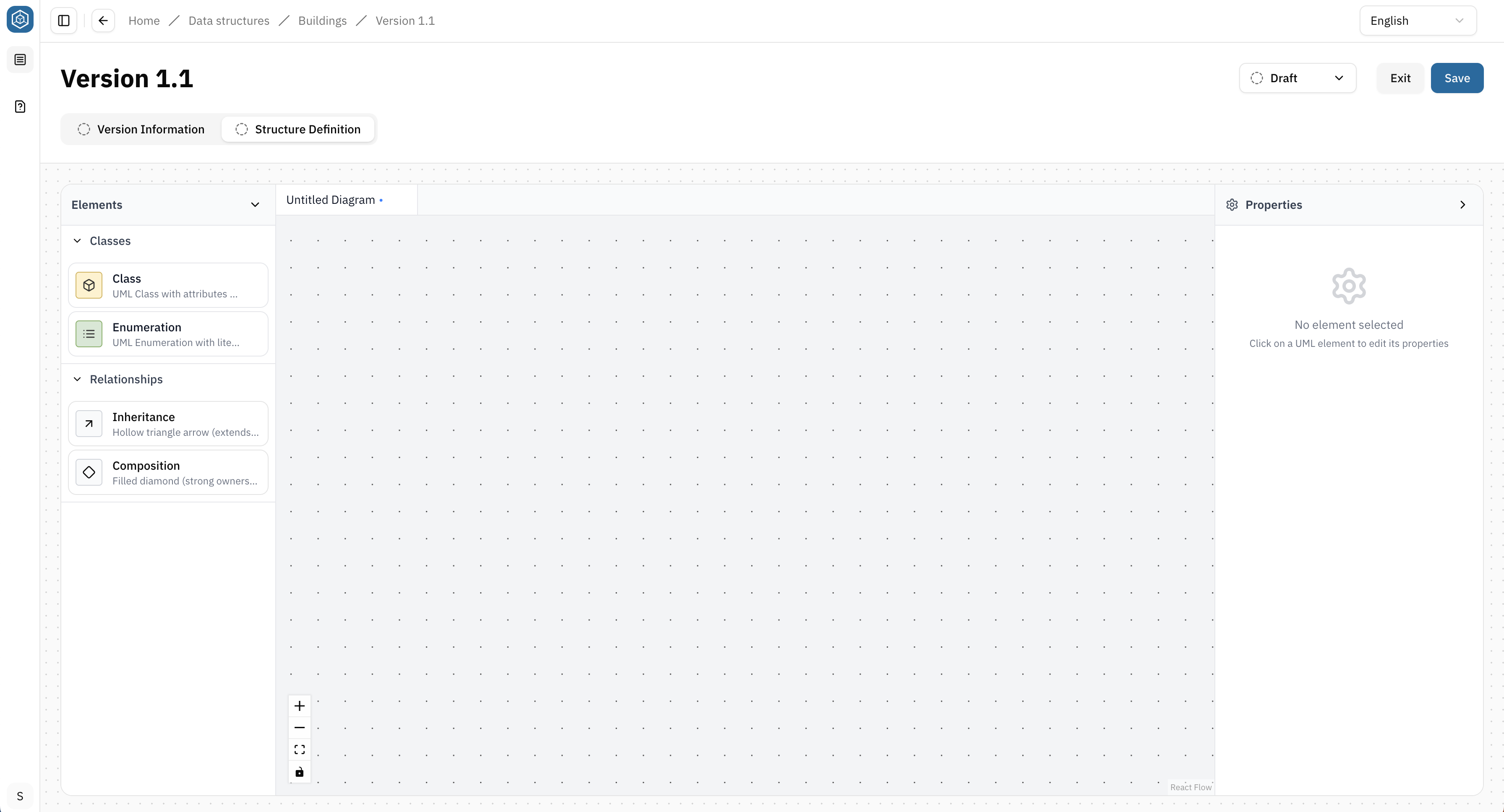
The Data Structure canvas allows you to build Data structures visually. Elements are added by dragging them from the left sidebar onto the canvas and configured using the properties panel.
To start defining a Data structure:
- Go to the Data structure Version
- Open the Structure Definition
Understand the building blocks
Classes
Classes are the main building blocks of a Data structure. Each Class represents a specific type of object and defines which information is stored about it.
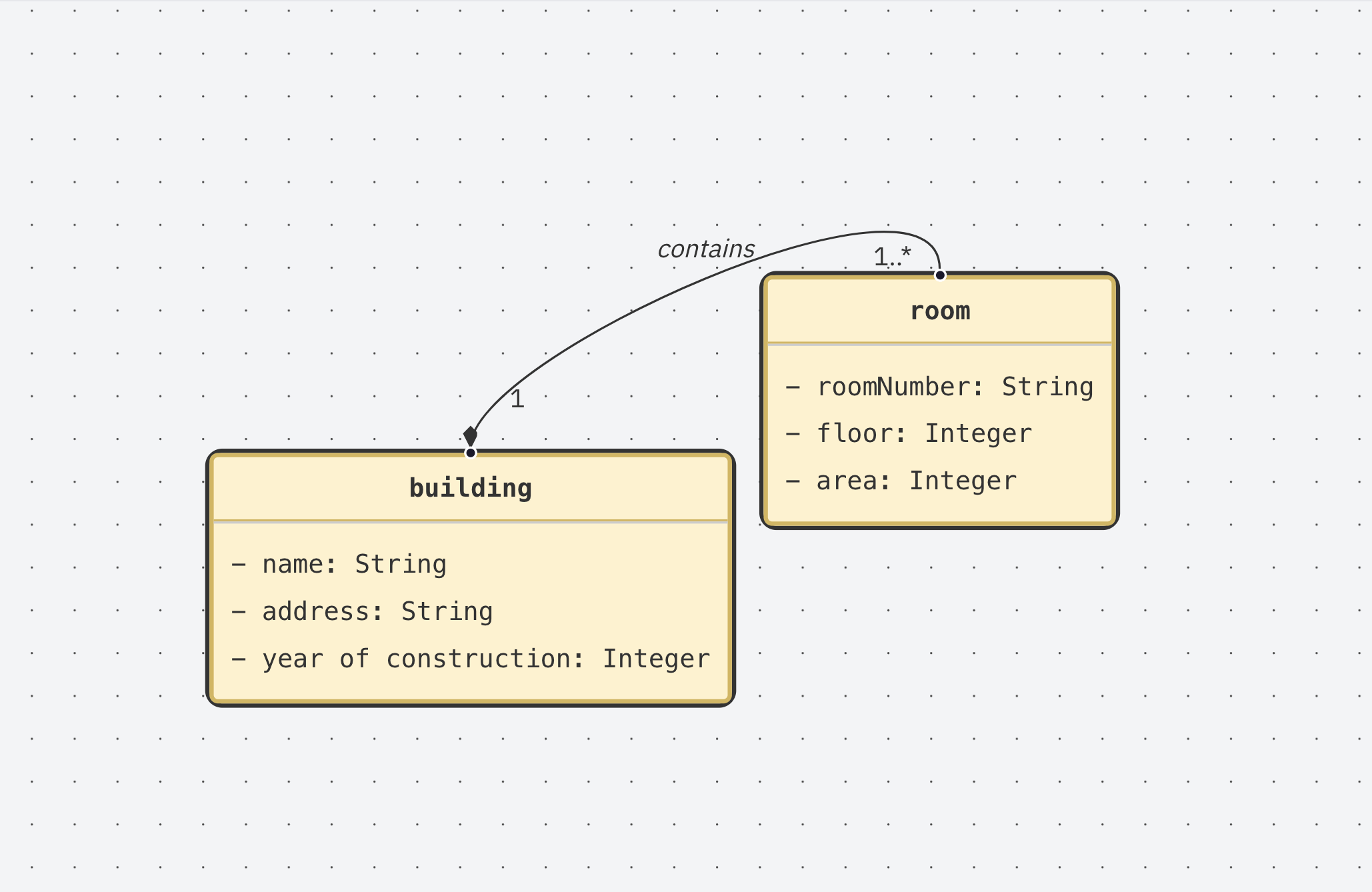
A Class consists of one or more Attributes that describe its properties. For example, a Building Class might contain Attributes such as name, address, and year of construction.
Use multiple Classes when your data contains different types of objects that belong together. These Classes can be connected through Relationships to describe how they are related.
Create a Class
- Drag a Class from the left sidebar onto the canvas
- Enter a name
- Configure the Class in the right properties panel
- Add the Attributes
- Hit Save
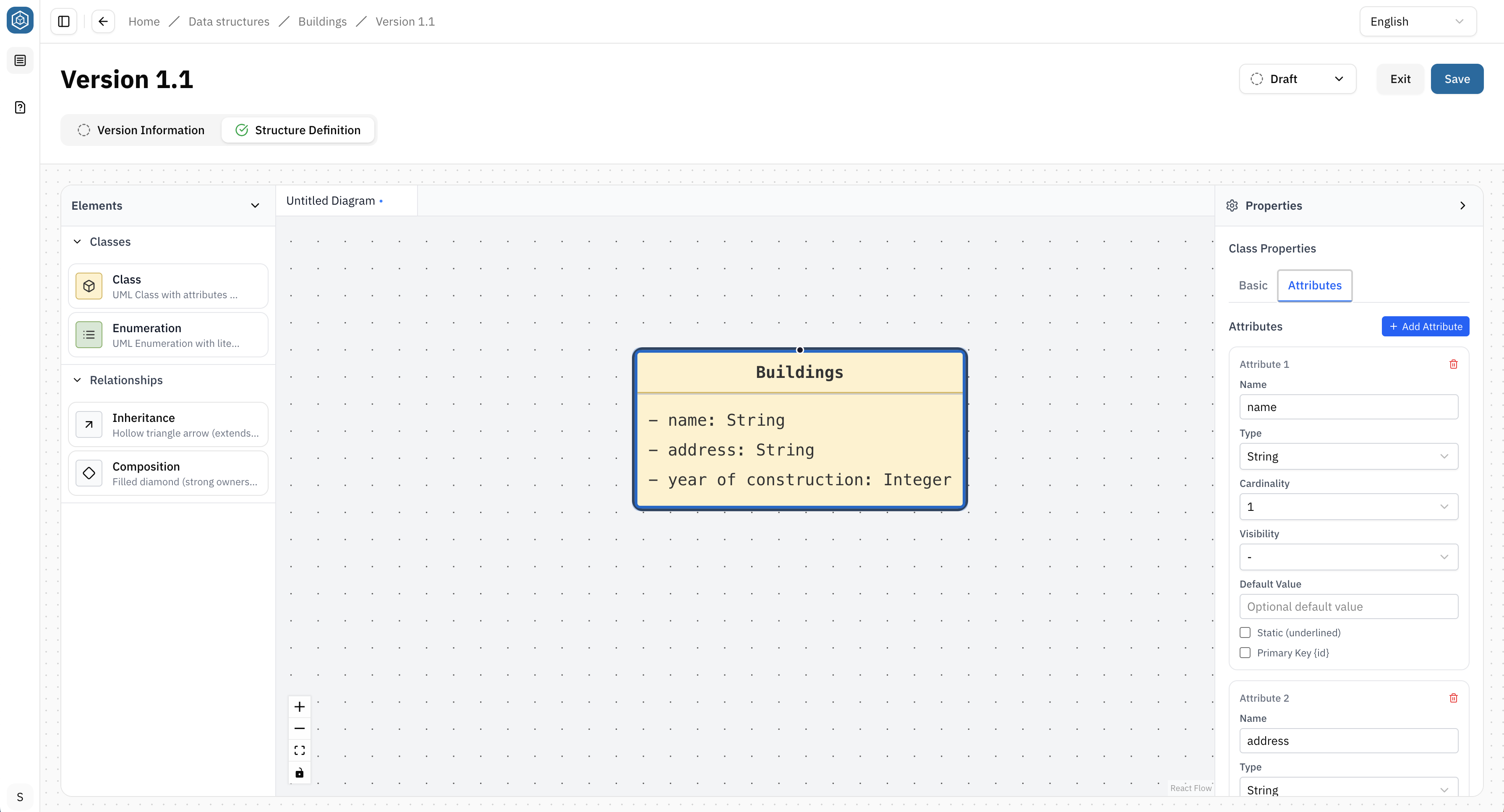
→ A Class can be edited, renamed, or deleted at any time while the Data structure is in the Draft status.
Delete a Class
Select the Class on the canvas and press the Delete key.
Use a Class to represent a distinct object. Use Attributes to describe that object.
Enums
An Enum (Enumeration) defines a fixed list of predefined values that an Attribute can use.
Use an Enum when only a limited set of values is allowed and these values are not expected to have additional Attributes or Relationships.
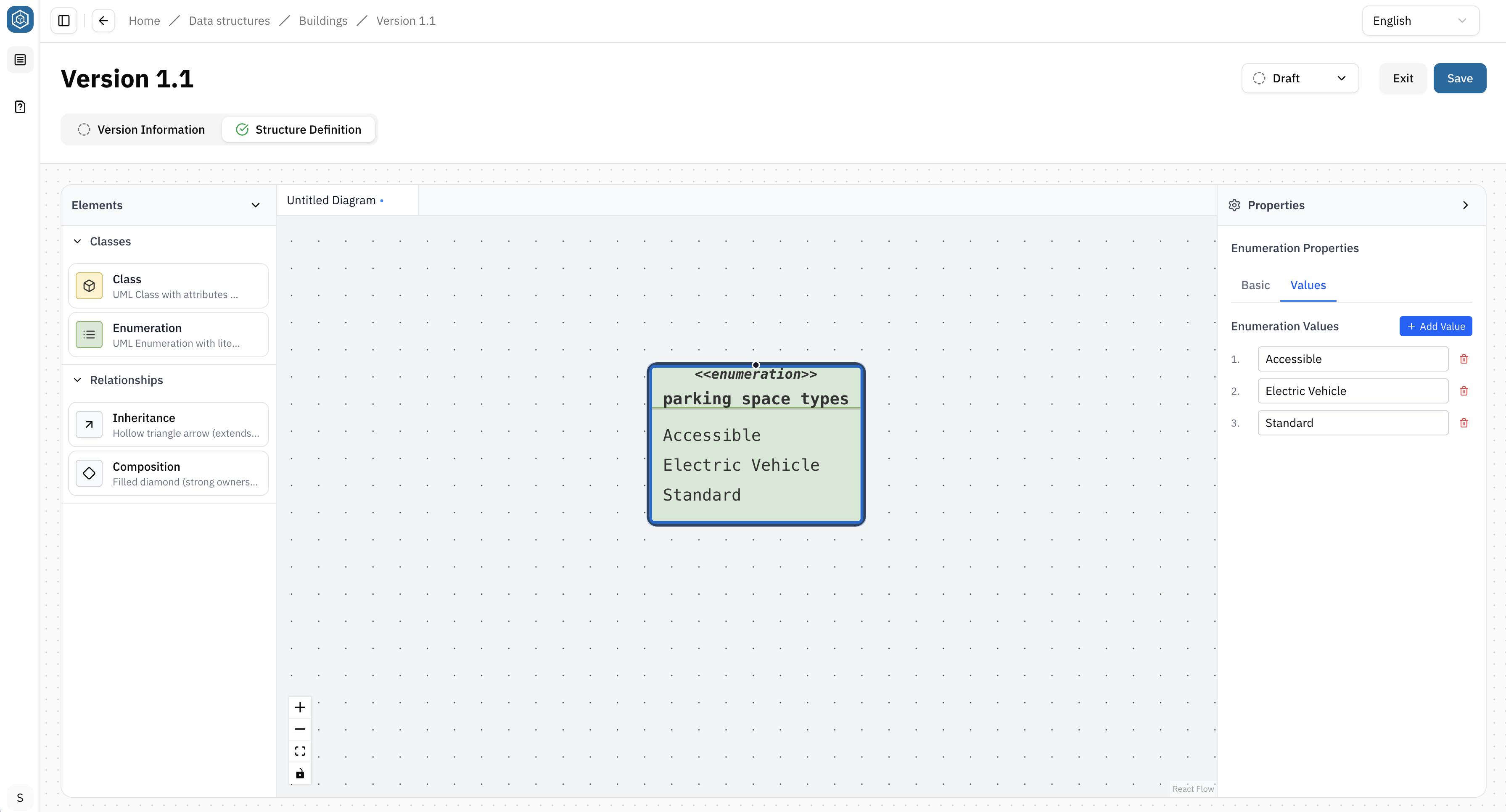
Example Instead of allowing any text value for a parking space type, create an Enum with the values: Accessible, Electric Vehicle, Standard
Create an Enum
- Drag an Enum from the left sidebar onto the canvas
- Enter a name
- Add the allowed values in the right properties panel
- Hit Save
Delete an Enum
Select the Enum on the canvas and press the Delete key.
Use an Enum for predefined value lists. If the values need their own Attributes or Relationships, create a Class instead.
Attributes
Attributes describe the properties of a Class. Each Attribute represents a single piece of information about the object defined by the Class.
Add an Attribute
- Select a Class on the canvas.
- Open the Attributes section in the right properties panel.
- Select Add Attribute
- Configure the Attribute
For each Attribute, you can define:
- Name: A unique name for the Attribute
- Type: Choose a primitive or geometry data type
- Cardinality: Specify whether the Attribute stores a single value or multiple values
- Default Value (optional): Set a value that is used by default
- Static (optional): Mark the Attribute as static
- Primary Key (optional): Identifies the Attribute as the unique identifier of the Class
Use meaningful names and choose the most appropriate data type for each Attribute. Keep Attributes focused on describing the selected Class.
Relationships
Relationships connect Classes and describe how different types of objects belong together. For example, a Building can contain multiple Rooms. The relationship connects both Classes and describes how they are related.
Create a Relationship
- Select a Relationship type from the left sidebar
- Drag a connection from the start Class to the end Class
- Select the connection to configure it in the right properties panel.
Alternative: Create a generic connection first and change the Relationship type later using the Relationship Type property.
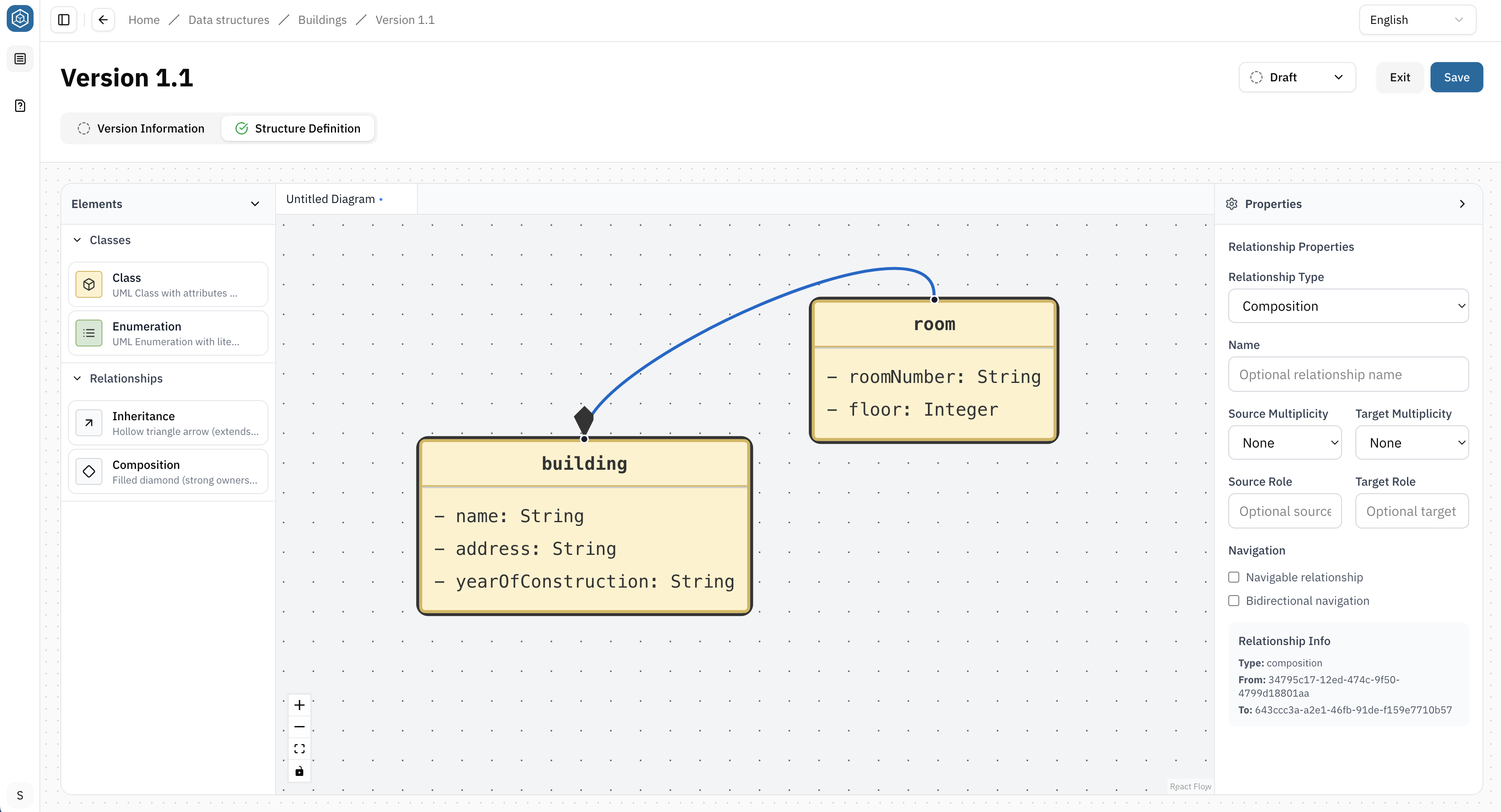
Every Class that belongs to a Data structure must be connected through Relationships. Unconnected Classes are not included in the hierarchical structure used throughout the Platform, for example in the Mapping Editor.
Relationship Types
| Relationship Type | Description |
|---|---|
| Composition | Represents a whole–part relationship where the contained objects belong to exactly one parent and typically do not exist independently |
| Inheritance | Allows one Class to inherit the properties of another Class. Use this when multiple Classes share common Attributes and behavior |
For each Relationship, you can define:
- Relationship Type: Defines how the connected Classes relate to each other
- Name (optional): Assign a descriptive name to the Relationship
- Multiplicity (Cardinalities): Defines how many objects can participate in the Relationship
- Roles (optional): Assign names to the connected ends of the Relationship
- Navigation (optional): Defines whether the Relationship can be navigated in one or both directions
Delete a Relationship
Select the Relationship on the canvas and press the Delete key.
The direction of a Relationship is significant. Always connect the start Class and end Class according to the logical structure of your data. Relationship direction determines how the Data structure is interpreted throughout the Platform, for example in the Mapping Editor.
Cardinalities/Multiplicity
Cardinalities define how many objects can participate in a Relationship. They describe the allowed number of connected objects between two Classes.
The following Cardinalities are commonly used:
| Cardinality | Meaning | Description |
|---|---|---|
| 1 | Exactly one | Exactly one object is required |
| 0..1 | Zero or one | The relationship is optional. At most one object can be related |
| 0..* | Zero or more | Any number of objects can be related, including none |
| 1..* | One or more | One or more objects must be related |
Example: A Building can contain many Rooms, while each Room belongs to exactly one Building.
Summary
You have learned how to:
- use the Data structure canvas
- create Classes, Enums, and Attributes
- connect Classes using Relationships
- choose appropriate Cardinalities
- select the appropriate Relationship type